
AI code editor
Cursor pricing,
plans and models.
Working with AI inside a real codebase: planning a change, editing files, reviewing diffs, and testing the result.
Inside the product
See the working surface.
A current first-party interface reference, preserved locally with its source and capture date.
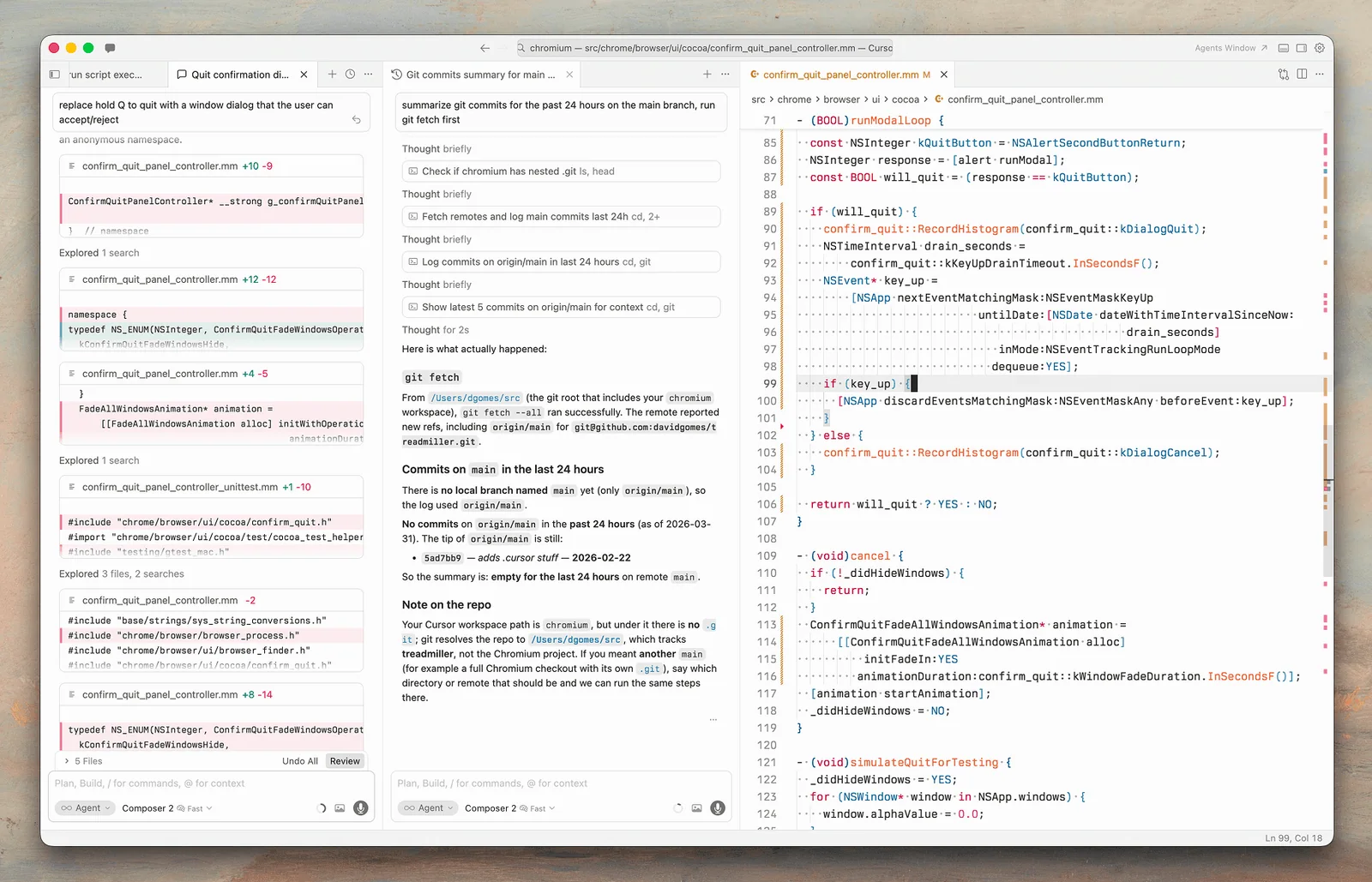
Cursor’s editor keeps agent activity, proposed changes, and the underlying code visible together for review.
Interface reference · Cursor 3.0 product changelog ↗ · Captured August 2, 2026Cursor is a AI code editor. Working with AI inside a real codebase: planning a change, editing files, reviewing diffs, and testing the result. This guide covers the whole path in one place: official access, a first session that produces something reviewable, the checks that make output trustworthy, and the permissions worth limiting before you connect real work.
AI should make the work easier to inspect. If the workflow removes the source, the owner, or the review step, redesign the workflow.
Access & setup
Find, install, and sign in to Cursor
Get into the official Cursor experience with the right account and a setup you understand.
- 01
Start at https://www.cursor.com/ and confirm the domain before entering account or payment information.
- 02
Availability: macOS, Windows, and Linux.
- 03
Cursor publishes installers for macOS, Windows, and Linux; choose the installer that matches your processor and operating system.
- 04
Sign in with the account you intend to keep using, then review plan, data, notification, and permission settings.
- 05
Run one low-risk test task before connecting sensitive files, repositories, or workspace data.
- Use official download pages.
- Review permissions during setup.
- Keep installers and applications updated.
First session
Your first useful Cursor session
Learn the interaction loop using a small task with a clear outcome.
- 01
Download Cursor, run the installer, then complete onboarding for shortcuts, theme, and terminal settings.
- 02
Open one existing repository and let the editor understand that project before asking for a change.
- 03
Ask for a small, scoped plan tied to named files and acceptance checks.
- 04
Review the diff and run the relevant tests before accepting the edit.
- State the outcome before the background.
- Provide the real source material.
- Review the result before expanding the task.
Quality control
Check the quality of Cursor output
Turn generated code into a change you would put your name on in review.
- 01
Restate the intended behaviour and the acceptance criteria before reading a single generated line.
- 02
Read the diff rather than the chat summary; the summary describes intent, the diff describes what actually changed.
- 03
Run the test suite, then write a test that would fail if the change were wrong, and confirm it passes for the right reason.
- 04
Check the edges the model tends to skip: error paths, null and empty cases, concurrency, and migration or rollback behaviour.
- 05
Trace every new dependency, network call, and file write, and confirm each one is genuinely required.
- Review the diff, never the description of the diff.
- A passing test suite proves the tests pass, not that the change is correct.
- Keep changes small enough that a human can actually review them.
Privacy & permissions
Use Cursor safely
Give the tool enough repository access to help, and no more than that.
- 01
Decide what the tool may read and what it may write before connecting a repository.
- 02
Scope tokens and integrations to the narrowest repository, branch, and permission set that still works.
- 03
Keep secrets out of the context window: use environment variables and secret stores, never inline credentials.
- 04
Require review before generated code touches authentication, payments, permissions, migrations, or deletion paths.
- 05
Audit what the integration retained after the session, and revoke access that is no longer needed.
- AI-generated code can appear plausible while breaking conventions, security assumptions, or tests. Keep changes small and make the test or verification step explicit.
- Follow your organisation's approved-use policy.
- Never treat fluent output as authorization to act.
Models & pricing
What Cursor costs, model by model.
Cursor is sold as monthly seats, but since June 2025 the usage inside those seats is metered as credits. The plan sets your credit allowance, not a hard feature boundary.
| Plan | Price | Best for |
|---|---|---|
| Hobby | Free | Trying the editor and light completions |
| Pro | $20 / month | Individual daily development |
| Pro+ | $60 / month | Heavy agent and multi-file work |
| Ultra | $200 / month | Sustained all-day agent workloads |
| Teams | $40 / user / month | Shared billing, admin, and policy |
Figures verified 2 September 2026 against Cursor pricing ↗. Model pricing changes frequently — confirm before you budget.
| Provider | Frontier tier | Balanced default | Low-cost tier |
|---|---|---|---|
| OpenAI | GPT-5.6 Sol — $5 / $30 | GPT-5.6 Terra — $2 / $12 | GPT-5.6 Luna — $0.20 / $1.20 |
| Anthropic | Fable 5.1 — $10 / $50 | Sonnet 5 — $2 / $10 | Haiku 4.5 — $1 / $5 |
| Gemini 3.1 Pro — $2 / $12 | Gemini 3.1 Pro — $2 / $12 | Gemini 3.5 Flash-Lite — $0.15 / $1.25 |
Cross-provider comparison verified 2 September 2026. Sources: OpenAI API pricing ↗ · Claude platform pricing ↗ · Gemini API pricing ↗
Common questions
Cursor questions people actually ask.
How much does Cursor cost?
Hobby is free, Pro is $20 per month, Pro+ is $60, Ultra is $200, and Teams is $40 per user per month. Annual billing cuts roughly 20%, bringing Pro to about $16 per month. Enterprise is quoted on request.
Why did I run out of Cursor usage before the month ended?
Cursor meters usage as credits inside the seat price. Agent runs that touch many files consume credits far faster than autocomplete, so a Pro seat can be exhausted early by heavy agent work. If that happens repeatedly, the next tier up is usually cheaper than paying overage.
Cursor or GitHub Copilot?
Copilot Pro is $10 per month against Cursor Pro at $20, and Copilot keeps code completions free of credit metering on every paid plan. Cursor's advantage is the agent working across a whole repository. If you mostly want inline completion, Copilot is half the price; if you want multi-file agentic edits, Cursor is built around that.
Core workflows
Step-by-step ways to use Cursor for the work it does best.
Each workflow below has its own outcome, steps and review checkpoints.
Plan, edit, inspect, and test one change without handing the repository over blindly.
↓ 02 WorkflowUse repository context without creating noiseGive Cursor enough project context to help while keeping prompts, rules, and generated changes focused.
↓Workflow 01
Make a safe first code change in Cursor
Plan, edit, inspect, and test one change without handing the repository over blindly.
Outcome: Complete a small code change with a diff you understand.
- 01
Open the repository and read its README, contribution notes, and available test commands.
- 02
Ask Cursor to locate the relevant files and explain the current behavior without changing anything.
- 03
State the acceptance criteria and ask for a file-by-file plan.
- 04
Apply the smallest viable edit, then inspect every changed line in the diff.
- 05
Run the narrowest relevant checks first, followed by the project's normal validation command.
Cursor’s editor keeps agent activity, proposed changes, and the underlying code visible together for review.
Interface reference · Cursor 3.0 product changelog ↗ · Captured August 2, 2026What good use looks like
- Commit or stash before larger edits.
- Name the files and constraints.
- Reject unexplained dependency changes.
Workflow 02
Use repository context without creating noise
Give Cursor enough project context to help while keeping prompts, rules, and generated changes focused.
Outcome: Improve codebase-aware answers without flooding the session.
- 01
Start from one repository and one concrete task rather than several projects.
- 02
Point to authoritative files: architecture notes, schemas, types, tests, and established examples.
- 03
Ask Cursor to state which files it used and what assumptions it made.
- 04
Correct a wrong assumption immediately and keep enduring conventions in project documentation.
- 05
Start a new thread after a major task boundary so stale context does not drive the next change.
What good use looks like
- Prefer authoritative files over broad context.
- Keep project rules short and testable.
- Verify references after renames.
Official references
Check the current product documentation.
Features, plan limits, availability, and data controls change. These official pages are the starting points used for this guide.